- Install Biltum from the App Store and create your account.
- Connect JobTread in the app and give it Read and Write access. Your JobTread jobs appear in Biltum.
- Open the job you’re walking and tap Start Project Scan.
- Walk room by room and talk through the work. Tap Next Room as you move.
- Review and tap Save Scan. Photos, video, and the measured floor plan sync to the job’s Files in JobTread.
- Download the Project Packet from the job’s Overview and get the zip onto your computer.
- One time only: connect JobTread to Claude or ChatGPT.
- New chat, attach the zip, and paste the one request from the packet’s README.
- Open the job’s Budget in JobTread, check the rows marked REVIEW -, answer the questions, and finish pricing.
The first time through takes about 30 minutes including setup. After that, a job is a walkthrough, one download, and one chat.
What you need
- An iPhone running iOS 17 or later. An iPhone Pro (12 Pro or newer) adds LiDAR measurements, the floor plan, and the 3D model. Any iPhone captures video, photos, and narration.
- A JobTread account with access to the jobs you estimate.
- Claude or ChatGPT on a computer, with file uploads and the JobTread connector available on your plan.
- A job created in JobTread with an empty budget. Biltum lists your existing JobTread jobs; it doesn’t create them.
- Install Biltum and create your account
- Connect JobTread in the app
- Open the job you’re walking
- Run the Project Scan
- Review the scan and tap Save Scan
- What lands in JobTread automatically
- Download the Project Packet
- Connect JobTread to Claude or ChatGPT
- Ask for the draft budget
- Review the draft in JobTread
- Troubleshooting
Step 1
Install Biltum and create your account
Search for Biltum on the App Store, or tap Get the app on your iPhone. The first screens explain the idea in three lines: capture the job once, leave with a Project Packet, use it with your own Claude or ChatGPT account.
Tap through to Create your account and sign up with your email and a password. Next is Tell us about your business: your name, your company name, and a phone number. These print on the Scopes of Work and estimates you send, so use the company name your clients know.
Prefer no password later? On the sign-in screen, tap No password? Get a code and Biltum emails you a 6-digit code.
Step 2
Connect JobTread in the app
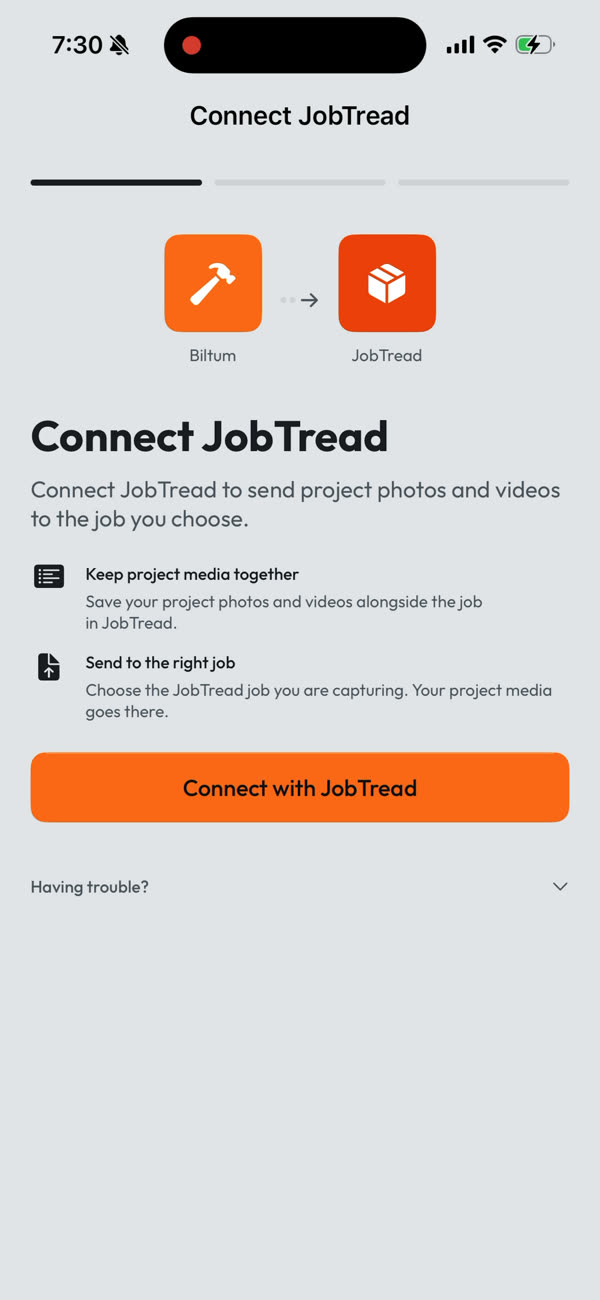
Right after your business details, Biltum shows Connect JobTread. This connection is what lets Biltum list your jobs and file the walkthrough photos, video, and floor plan on them.
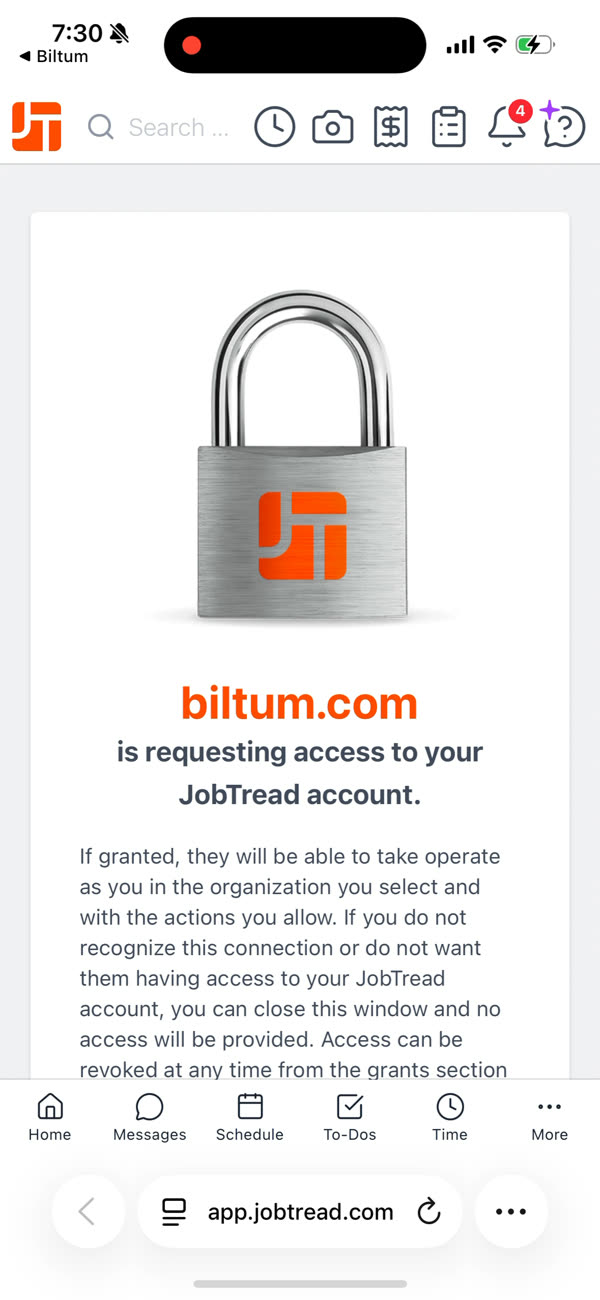
- Tap Connect with JobTread. JobTread opens in Safari; sign in if it asks.
- JobTread shows biltum.com is requesting access to your JobTread account. Scroll down.
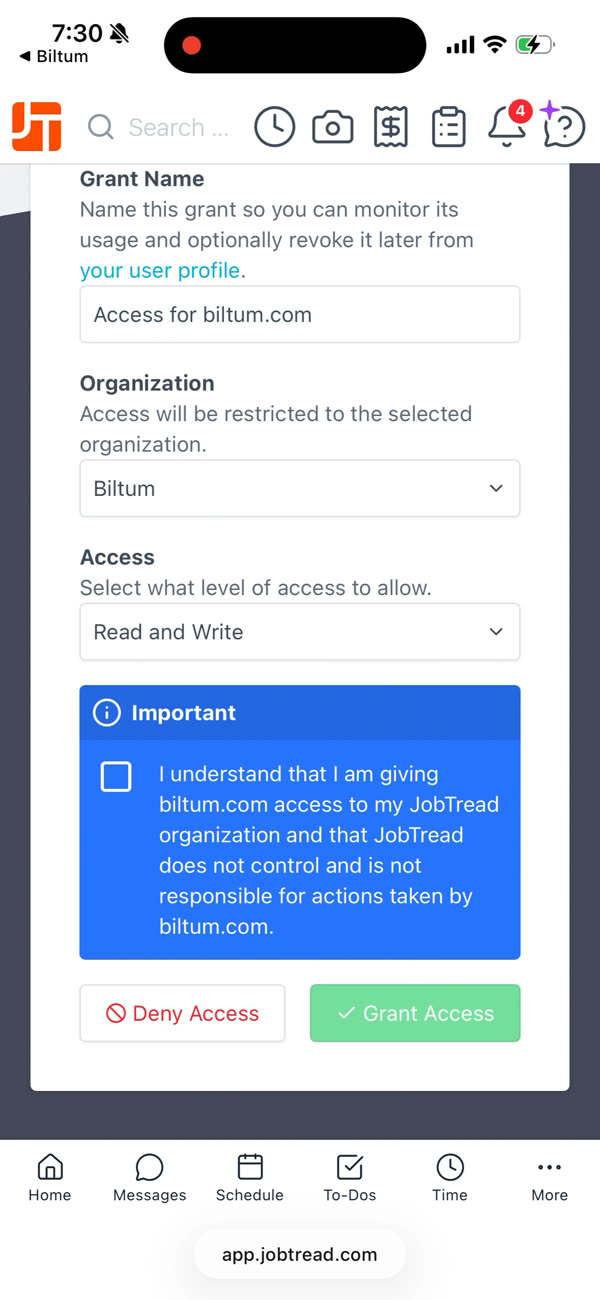
- Grant Name is prefilled as Access for biltum.com. Leave it; it’s how you’ll recognize the connection in JobTread later.
- Organization: choose the company whose jobs you estimate.
- Access: choose Read and Write. Biltum needs write access to upload files to your jobs; it never deletes anything.
- Check the Important acknowledgment box and tap Grant Access.
- JobTread says JobTread connected. Tap Open when Safari asks to open Biltum.
You can revoke the connection anytime from your JobTread user profile, under grants. If the browser flow gives you trouble, tap Having trouble? on the Connect screen and use Use a grant key instead: create a grant in JobTread under Settings → Integrations → API → Grants and paste the key into Biltum.
Step 3
Open the job you’re walking
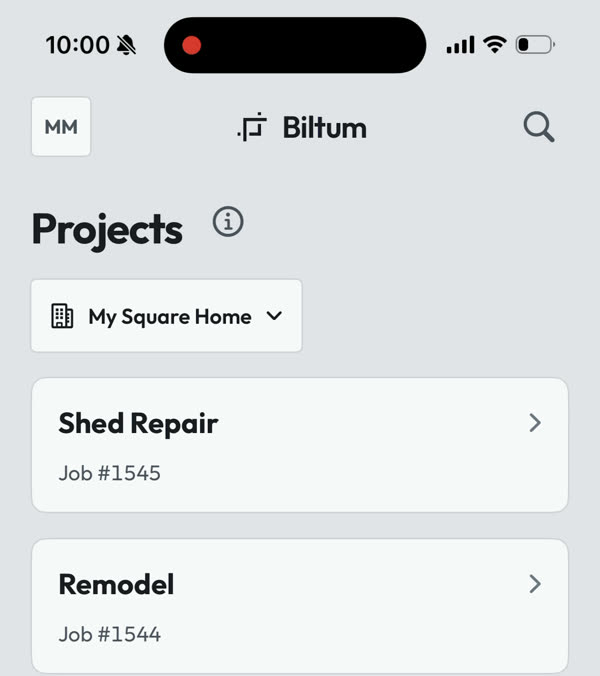
The Projects tab now lists your JobTread jobs, with their JobTread job numbers. If you belong to more than one JobTread company, use the organization picker at the top to switch.
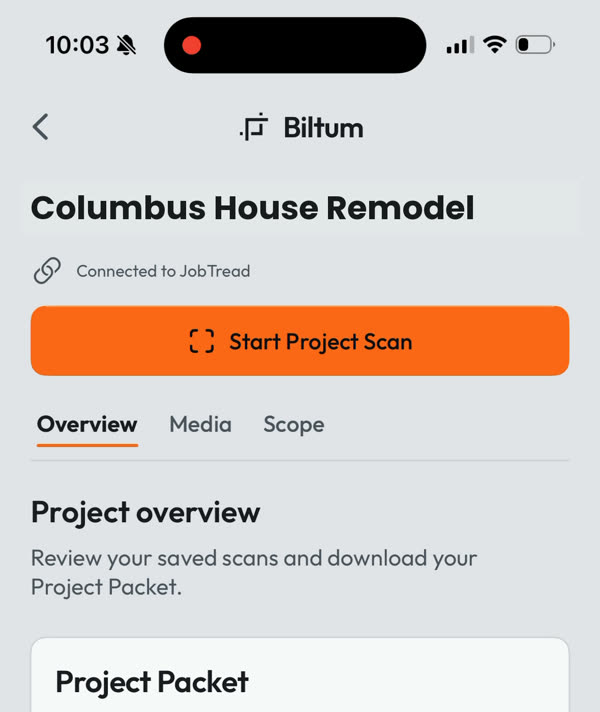
Don’t see the job? Create it in JobTread first, then come back; the list refreshes on its own. Tap the job to open it. The header reads Connected to JobTread, and the job has three tabs: Overview, Media, and Scope.
Step 4
Run the Project Scan
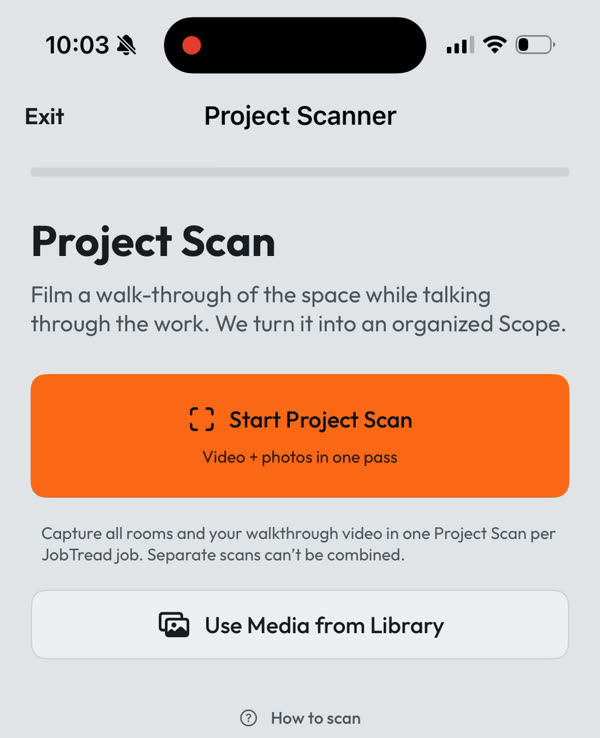
Tap Start Project Scan. The next screen offers Start Project Scan (video and photos in one pass) or Use Media from Library if you already filmed the walkthrough. Capture every room in this one scan: separate scans on the same JobTread job can’t be combined later.
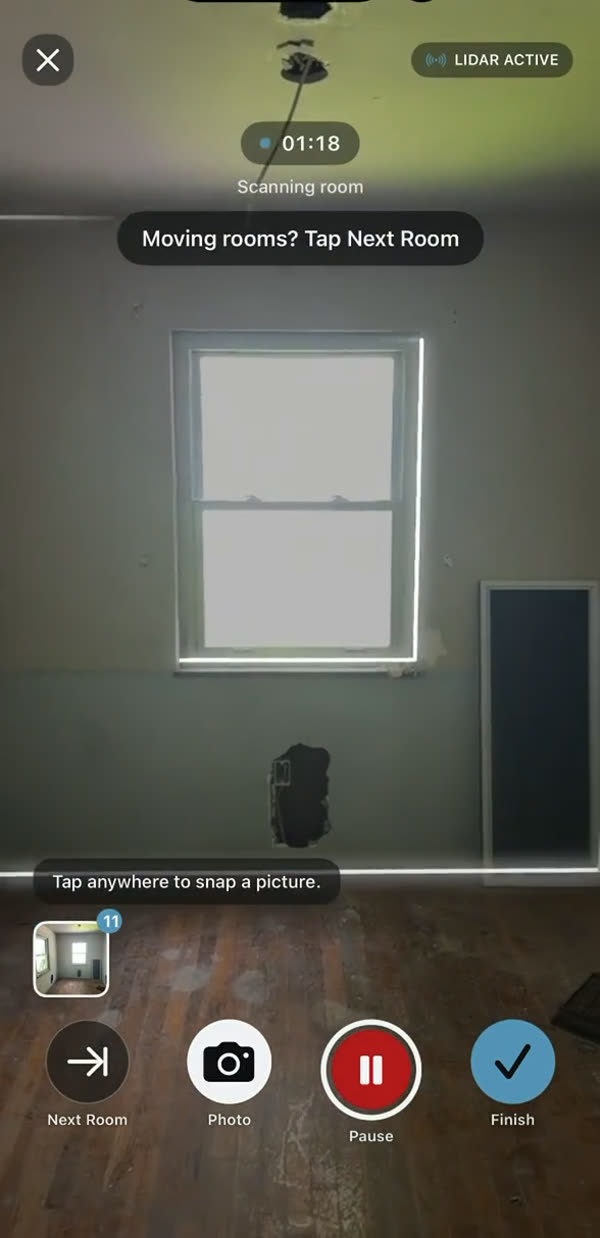
A short card says Describe one room at a time. Tap Next Room and say what room you’re entering. A 3-2-1 countdown starts the capture. On an iPhone Pro, the LiDAR badge shows it’s measuring while it records.
The controls
- Next Room — tap as you cross into a new room, then say the room’s name. This keeps every note attached to the right space.
- Photo — snaps a still without stopping the video. Use it on anything that matters later: damage, panel labels, model numbers, supply lines.
- Pause — pauses the guidance prompts; scanning, video, and narration keep going.
- Finish — ends the walkthrough.
- .5× / 1× / 4× — zoom for tight rooms or far details.
What to say
Prompts rotate at the top of the screen as you walk: Talk through the job as you go, Say what stays and what changes, Point out damage and repairs, Call out anything excluded, Mention work that could be missed. Follow them. Your narration is the scope; the budget can only include what you said or showed.
For each room, cover what stays, what comes out, what goes in, the finish, and anything unknown until demo. Name sizes, materials, and who supplies them: “New 36-inch vanity, client-supplied. Tile the shower to the ceiling. Move this outlet left of the mirror. Subfloor repair is excluded until demo.” Short, specific sentences beat a long tour. If you change your mind, say the final decision clearly.
When every room is done, tap Finish. Biltum asks All rooms captured? Tap Finish scan, or Keep scanning if you missed a space.
Step 5
Review the scan and tap Save Scan
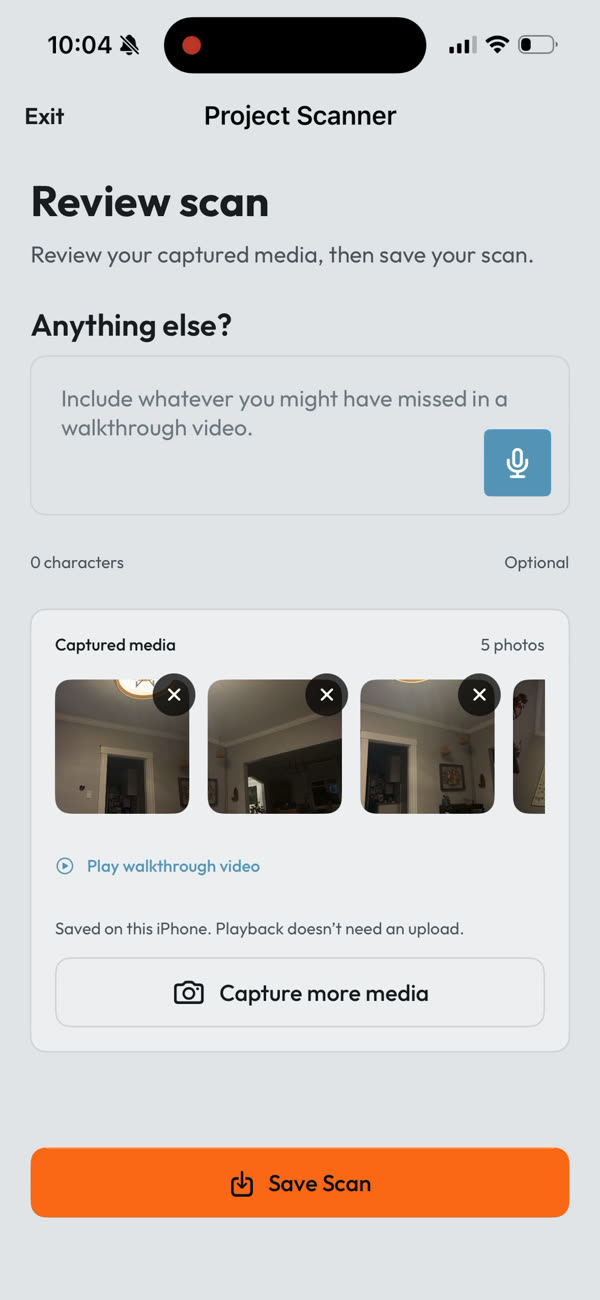
The Review scan screen is your last chance to add context before anything is saved.
- Anything else? — type or tap the microphone to dictate anything you forgot on the walk: a measurement, an allowance, a client request. It’s optional.
- Captured media — every photo you took. Tap the × to drop a bad one.
- Play walkthrough video — replays the walk from the phone; no upload needed.
- Capture more media — add photos you still need.
Tap Save Scan. You land back on the job’s Overview, which shows Syncing with JobTread while the walkthrough uploads in the background. Large videos take a few minutes; Wi-Fi helps. If you see Upload couldn’t finish. Your capture is saved, the scan is safe on the phone and the upload resumes on its own.
Step 6
What lands in JobTread automatically
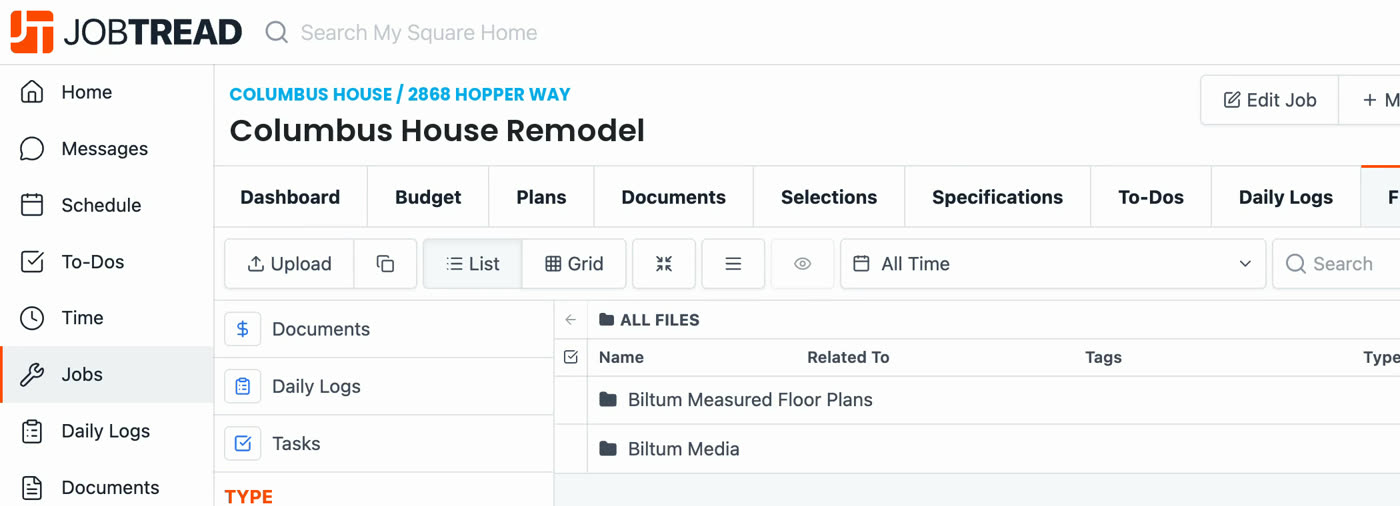
Once the upload finishes, open the job in JobTread and go to Files. Biltum adds two folders:
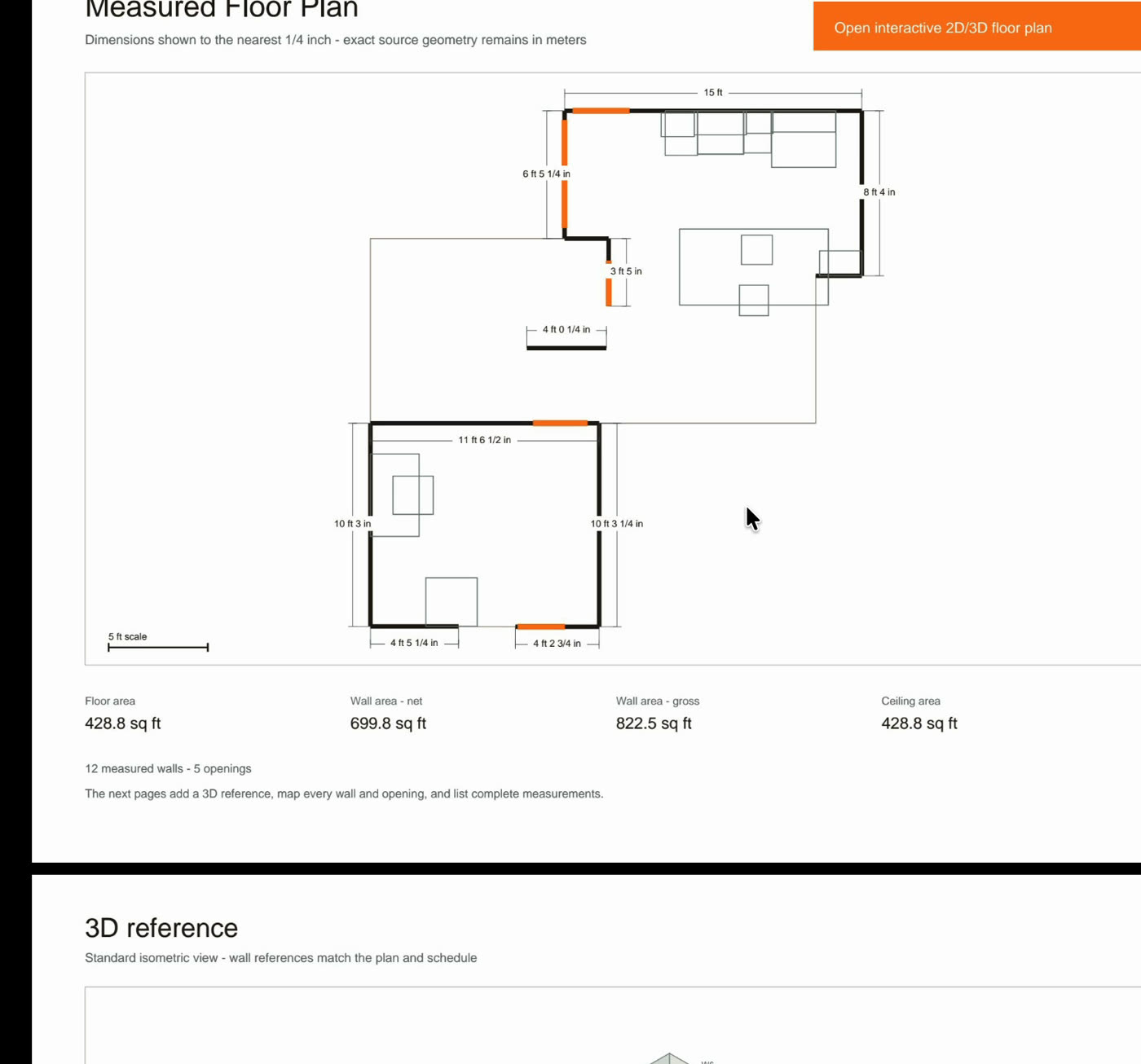
- Biltum Measured Floor Plans — a PDF report with the measured floor plan, the 3D reference, and a full measurement schedule, plus a link to the interactive 2D and 3D plan.
- Biltum Media — the walkthrough video and every photo from the scan.
You don’t need to do anything for this; it happens on every saved scan. The draft budget is a separate step, below.
Step 7
Download the Project Packet
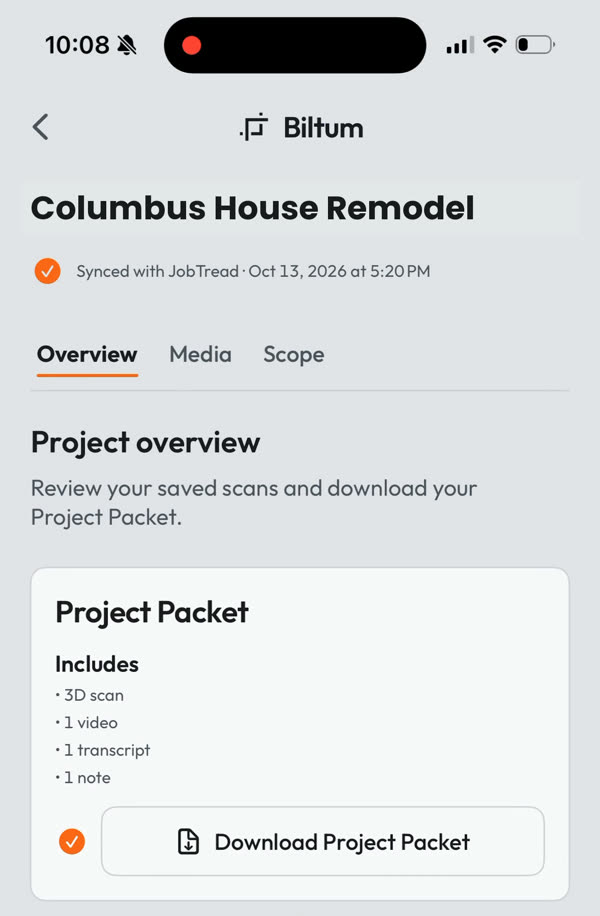
Back in Biltum, the job’s Overview shows a Project Packet card with an Includes list: the 3D scan, video, transcript, notes, timestamped images, and budget-writing instructions. If it says Its Project Packet is still finishing, give it a minute.
- Tap Download Project Packet. It shows Preparing Project Packet… while it builds the zip.
- The iPhone share sheet opens. AirDrop it to your Mac or tap Save to Files. Packets with video run a few hundred megabytes, so use a computer for the next steps.
What’s in the zip
| File or folder | What it’s for |
|---|---|
| README.txt | Names the exact JobTread job and gives you the one request to paste into Claude or ChatGPT. |
| LLM-budget-instructions.txt | The step-by-step estimating method your assistant follows: confirm the job, learn your company’s budgets and catalog, plan the scope, measure, write, verify, ask. |
| manifest.json | Job identity, every file in the packet, and anything still missing. |
| floor-plan/ | The measured plan as PDF, SVG, DXF, the source measurements, and the 3D scan (USDZ). |
| transcripts/ | Everything you said, plain and timestamped. |
| media/ and walkthroughs/ | Your photos, a map of when each was taken, the walkthrough video, and timestamped frames from it. |
You don’t need to unzip it. Your assistant does that.
Step 8 · one time only
Connect JobTread to Claude or ChatGPT
This is what lets your assistant read your catalog and past budgets, and write the draft into the job. You only do it once.
Claude
- In Claude, open Settings → Connectors.
- Open Discover, search for JobTread, and tap Connect.
- Sign in to JobTread and approve access for the same organization, with read and write access.
- JobTread now appears under Yours with a check mark.
- Under Settings → Capabilities, make sure code execution and file creation are on, so Claude can open the zip.

ChatGPT
ChatGPT works the same way: connect JobTread’s AI Connector to your ChatGPT account, then use a chat that can read uploaded files and run code. JobTread keeps the current setup steps on its AI Connector page.
Step 9
Ask for the draft budget
- Start a new chat. In Claude, check that the JobTread connector is on for this chat (the + menu → Connectors).
- Attach the Project Packet zip.
- Paste the request. The exact wording is in the packet’s README; this is the short form:
Unpack this Project Packet and follow LLM-budget-instructions.txt. Use my connected JobTread organization and the exact source job in README.txt and manifest.json. I authorize you to write the complete editable budget draft into that job. Use the included timestamped frames. Apply the fuller-scope and REVIEW - rules, verify the written budget, then ask concise questions.
The sentence “I authorize you to write the complete editable budget draft into that job” matters. The instructions in the packet never give your assistant permission to write on their own; your request does.
When Claude first asks to use JobTread, approve it. Choosing Always allow for JobTread keeps it from stopping to ask on every step. Then let it work. A typical job takes several minutes, longer for a large house. Leave the chat open. Along the way it:
- Confirms your JobTread organization and the exact job from the packet.
- Reads your catalog, cost groups, and recent budgets to learn how your company structures, names, and prices work.
- Reads your narration, photos, frames, and measurements.
- Plans the scope in your structure, measures quantities from the scan, and applies your catalog items and rates.
- Writes the complete draft into the job’s budget, reads it back to verify, then asks you a few concise questions.
Step 10
Review the draft in JobTread
Open the job in JobTread and go to Budget. The draft is there, grouped the way your past budgets are, with your catalog items and the scan’s measurements as quantities.
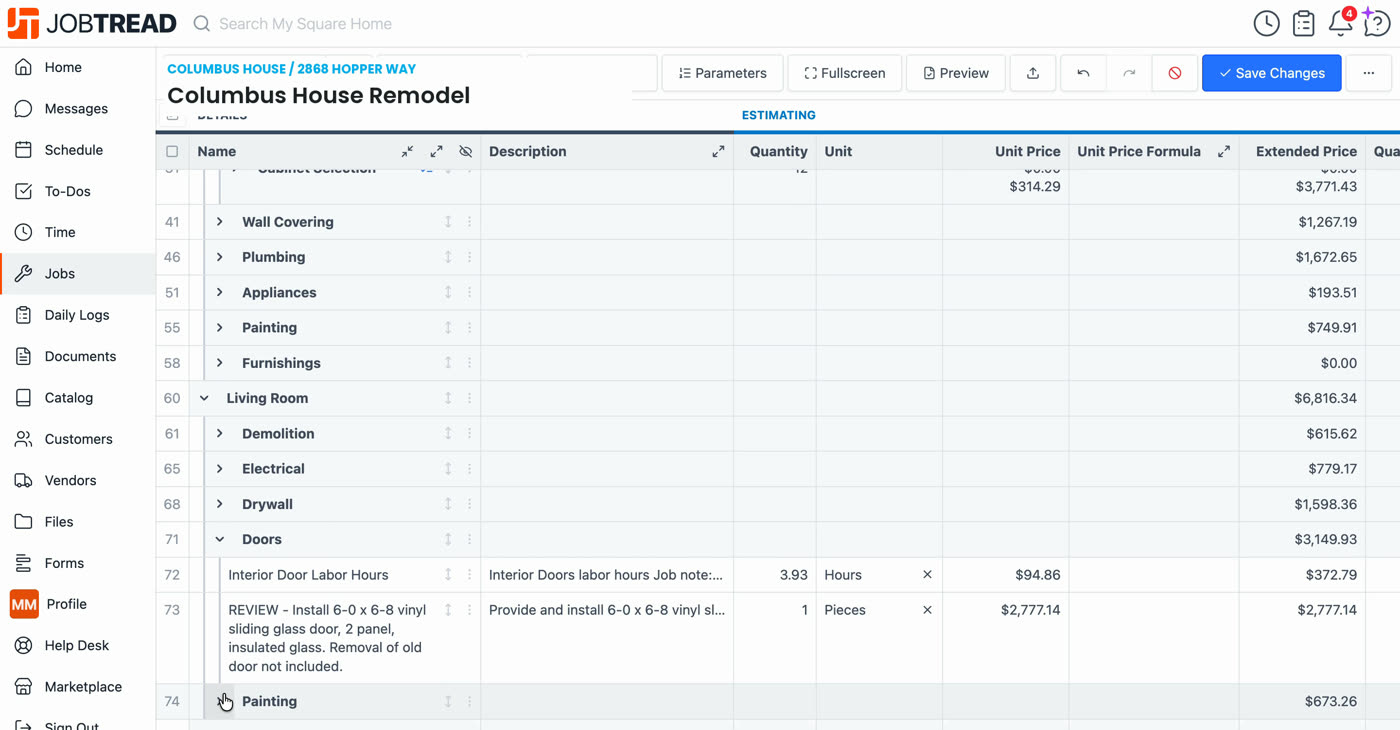
- Rows that start with REVIEW - are the calls your assistant wasn’t sure about. It wrote its best supported read instead of stopping. Confirm, change, or delete each one.
- Answer its questions in the chat. It updates the affected rows in JobTread.
- Price and finish it the way you finish every budget: rates, markup, allowances. Save changes.
Nothing reaches your client until you send it from JobTread. Proposals, contracts, and approvals stay where they are.
Optional: the Scope of Work and the 3D model
The same scan gives you two more things, neither required for the budget:
- Scope of Work — on the job’s Scope tab, tap Create Scope for an editable, client-friendly Scope of Work from the walkthrough. See how a walkthrough becomes a Scope of Work.
- Floor plan and 3D model — on an iPhone Pro, export the plan as PDF, SVG, or DXF and the 3D scan as USDZ, or share a read-only link. See how accurate iPhone LiDAR is before you order material from it.
Troubleshooting
| What you see | What to do |
|---|---|
| The job isn’t in Biltum’s list | Create it in JobTread and check you’re on the right organization in the picker. The list refreshes on its own when you come back. |
| “Project Packet is still finishing” | The video is still uploading. Keep the app open on Wi-Fi for a few minutes and try again. |
| “Upload couldn’t finish. Your capture is saved” | Nothing is lost. Reopen the app on a good connection and the upload resumes. |
| Claude can’t open the zip | Turn on code execution and file creation in Settings → Capabilities, start a new chat, and attach the zip again. |
| Claude can’t see your JobTread | Check the JobTread connector is connected and switched on for the chat, and that it’s the same organization as the job. |
| The draft landed in the wrong place | Make sure the job’s budget was empty before you started, and name the job explicitly in your request if you want a different destination. |
Source note: App screens and labels reflect the Biltum iPhone app as verified on October 15, 2026, and the Project Packet with budget-writing instructions version 0.4.3. JobTread’s AI Connector is a JobTread product; see JobTread’s documentation for its current setup. Biltum works with JobTread.
Related: how a walkthrough becomes a Scope of Work and how accurate iPhone LiDAR is for renovation work.